

Description
Download Podcast Monkey – Easy Podcast Publishing, Mac RSS Tool
Overview of Podcast Monkey
Podcast Monkey is a lightweight, Mac‑only internet utility designed to simplify the publishing workflow for podcasters who want to avoid the tangled world of XML feeds. First introduced to the catalog in 2006, the trial version of Podcast Monkey has already amassed more than a hundred downloads, a testament to its niche appeal among creators looking for a straightforward, no‑code solution. The current release, version 1.0.3, was refreshed on June 1 2006 and remains compatible with Mac OS X and earlier iterations of the operating system. Built with a clean, intuitive interface, the application occupies far less disk space than many competing RSS tools, making it an attractive option for users with limited storage or those who prefer minimalistic software. While the trial limits some advanced capabilities, the core functionality—creating, editing, and publishing podcast RSS feeds—works flawlessly without demanding any knowledge of XML syntax. Podcast Monkey positions itself squarely in the “Internet Software → News (RSS)” subcategory, bridging the gap between content creation and distribution. Its English‑language UI ensures that most podcasters can get up and running quickly, and the secure download process guarantees that users receive an untampered, authentic version of the program. Whether you are a hobbyist looking to launch a weekend show or a seasoned broadcaster seeking a quick publishing shortcut, Podcast Monkey offers a free, secure entry point into the world of podcast syndication.
Core Features of Podcast Monkey
- Zero‑Code Feed Generation: Automatically creates a standards‑compliant RSS feed without requiring users to write or edit XML.
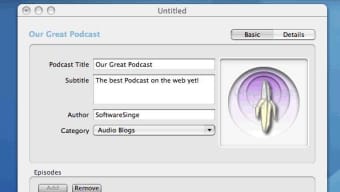
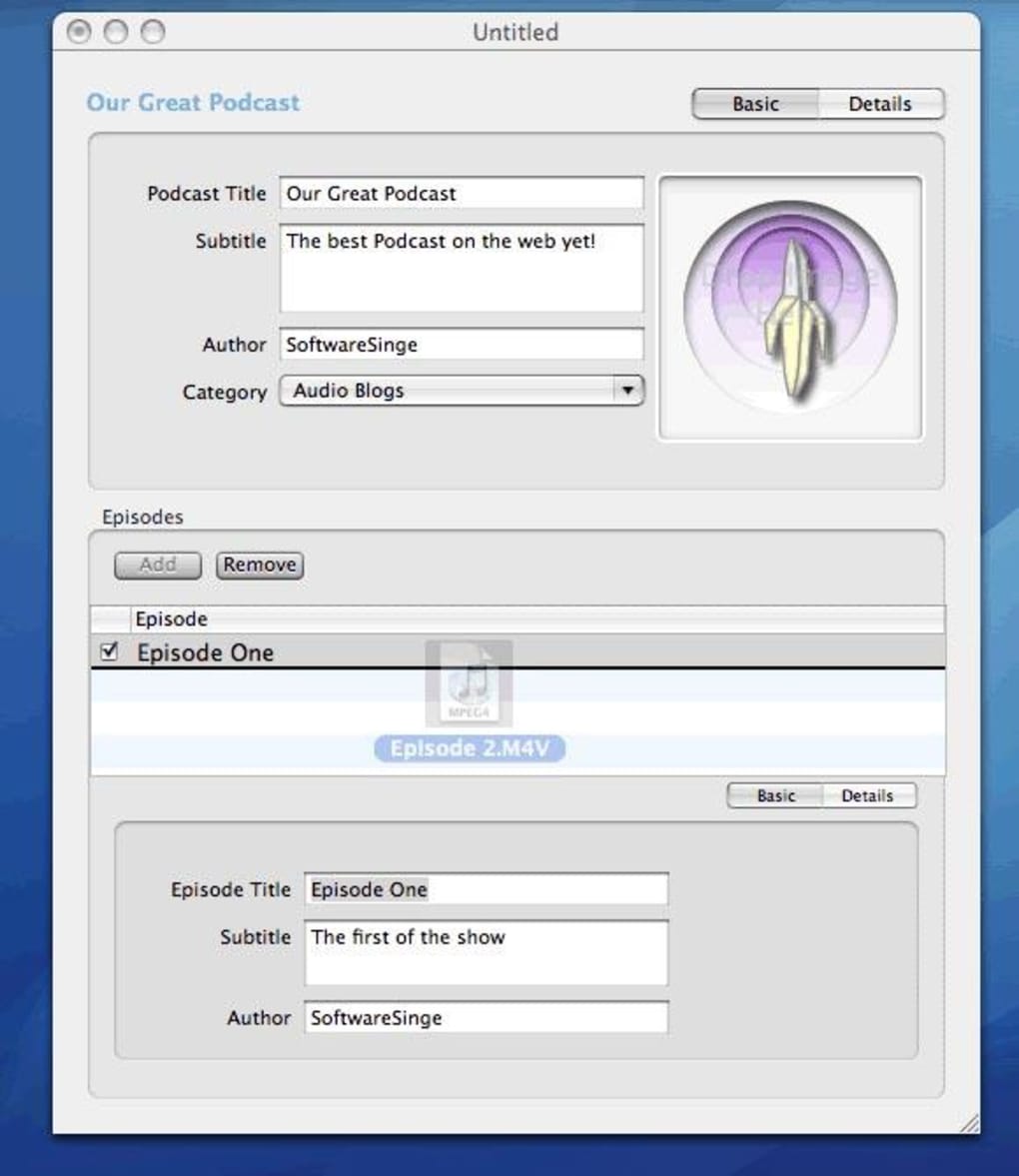
- Intuitive Episode Management: Drag‑and‑drop interface for adding audio files, setting titles, descriptions, and publication dates.
- Built‑in Podcast Artwork Support: Resize and embed cover images that meet iTunes and Spotify specifications.
- Automatic Enclosure Tagging: The app inserts proper enclosure tags, ensuring that podcast directories can locate your media files.
- Secure HTTPS Publishing: Connects directly to your web host via secure protocols, eliminating the need for manual file transfers.
- Version‑Controlled Updates: The trial version checks for updates and prompts you to download the latest patch, keeping the tool current.
- Lightweight Footprint: Requires less than 20 MB of disk space, ideal for older Macs or systems with limited storage.
- Multilingual Date Formatting: Supports US and European date formats, reducing confusion when scheduling releases.
- Export to Local File: Save a copy of your RSS feed locally for backup or manual upload if needed.
- Help Center Integration: Context‑sensitive tips guide you through each step, from initial setup to final publishing.
Step‑by‑Step Installation and Usage Guide
Getting Podcast Monkey up and running on your Mac is a breeze, even for users with limited technical experience. Follow these detailed steps to ensure a smooth installation and start publishing your first episode within minutes.
- Download the Installer: Click the “Download Podcast Monkey” button on the official page. The file is a compressed
.dmgpackage signed by the developer, guaranteeing a secure transfer. - Mount the Disk Image: Double‑click the
.dmgfile. macOS will open a new window displaying the Podcast Monkey icon and a shortcut to the Applications folder. - Copy to Applications: Drag the Podcast Monkey icon onto the Applications shortcut. This copies the app to
/Applications, making it available to all user accounts on the Mac. - Launch the App: Navigate to the Applications folder and double‑click Podcast Monkey. The first launch may trigger a security prompt; select “Open” to allow the app to run.
- Initial Configuration: Upon opening, you’ll be asked to specify your podcast’s basic metadata: title, author, and primary website URL. Fill these fields and click “Save”.
- Add Your First Episode: Click the “Add Episode” button. Use the file picker to locate your audio file (MP3, AAC, or M4A). Enter episode title, description, and select a publication date.
- Upload Artwork: In the “Cover Art” section, drag an image file (minimum 1400 × 1400 px) onto the placeholder. The app automatically resizes it to meet major directory requirements.
- Publish the Feed: Choose “Publish”. Podcast Monkey will connect to the FTP/SFTP server you configured during setup, upload the RSS file, and confirm successful transfer.
- Validate the Feed: After publishing, a pop‑up offers a link to an online validator (e.g., Cast Feed Validator). Click it to ensure the feed complies with industry standards.
- Repeat for New Episodes: For each new episode, repeat steps 5‑8. The app keeps a history of all published episodes, allowing you to edit or republish as needed.
Tips for optimal use: keep your audio files under 100 MB to speed up uploads, and regularly back up the local copy of your RSS feed. The trial version limits the number of episodes you can store, but upgrading to the full version removes this restriction and adds advanced analytics.
Mac Compatibility and System Requirements
Podcast Monkey was built exclusively for Apple’s desktop ecosystem. The application runs on macOS 10.4 (Tiger) through macOS 10.7 (Lion), covering both legacy machines and slightly newer models released before the shift to 64‑bit‑only software. Because the program is a native Cocoa application, it integrates seamlessly with macOS’s Finder, Dock, and System Preferences, offering a consistent look and feel across supported versions.
Minimum hardware specifications:
- Processor: Intel Core 2 Duo or compatible PowerPC G4/G5
- RAM: 512 MB (1 GB recommended for smoother performance)
- Hard Disk Space: 20 MB free for installation plus additional space for temporary audio files
- Network: Broadband internet connection for FTP/SFTP publishing
While Podcast Monkey does not support Windows, Android, or iOS, its focused Mac‑only design means the codebase is lean, resulting in faster start‑up times and lower memory consumption compared with cross‑platform alternatives. Users who run macOS on Apple Silicon (M1/M2) can still run Podcast Monkey through Rosetta 2 translation, though performance may be marginally slower than on native Intel hardware.
The application also respects macOS security frameworks. It requires permission to access your Documents folder (where audio files are stored) and network privileges to connect to your chosen FTP host. These permissions are requested the first time you attempt to publish, ensuring a secure, user‑controlled environment.
Pros, Cons, Frequently Asked Questions & Final Verdict
Pros
- Zero‑code RSS generation eliminates the steep learning curve of XML.
- Very small download size and low system footprint.
- Secure HTTPS publishing directly from the app.
- Intuitive drag‑and‑drop interface for episode management.
- Built‑in validation links help ensure feed compliance.
Cons
- Trial version restricts the number of episodes you can store.
- Only compatible with older macOS versions; no native support for macOS 10.8+ or Apple Silicon.
- Lacks advanced analytics and audience metrics found in larger platforms.
- No built‑in audio editing tools; you must prepare files externally.
- Limited to FTP/SFTP publishing; no direct integration with cloud storage services.
Frequently Asked Questions
Can I use Podcast Monkey to publish to iTunes or Spotify?
Yes. Podcast Monkey generates a standard RSS feed that meets the specifications required by iTunes, Spotify, and most other major podcast directories. After publishing, you simply submit the feed URL to the directory’s submission portal.
Do I need an FTP server to use Podcast Monkey?
An FTP or SFTP server is required for automatic publishing because Podcast Monkey uploads the RSS file directly to your web host. If you prefer manual uploads, you can export the RSS file locally and transfer it using any method you like.
Is the trial version time‑limited?
The trial is not time‑limited but restricts certain features, such as the total number of episodes you can store and the lack of advanced analytics. Purchasing the full license lifts these restrictions.
Can Podcast Monkey handle large audio files (over 200 MB)?
While the application can process large files, uploading very large episodes may be slow, especially over a modest internet connection. It’s recommended to keep individual episodes under 100 MB for optimal performance.
What security measures protect my podcast feed?
Podcast Monkey uses HTTPS for all communications with your FTP/SFTP server, and the downloaded installer is digitally signed. Additionally, the app never stores your login credentials in plain text; they are saved in the macOS Keychain.
Conclusion & Call to Action
Podcast Monkey fills a niche that many modern podcast tools overlook: a no‑code, lightweight Mac application that lets creators focus on content rather than technical details. Its straightforward interface, secure publishing workflow, and minimal system requirements make it an excellent choice for hobbyists and small‑scale podcasters who prefer a desktop‑centric approach. While the trial version’s episode limit and lack of native Apple‑Silicon support may deter power users, the core functionality remains solid and reliable. If you’re ready to launch your podcast without wrestling with XML, give Podcast Monkey a try today. Download the free trial, set up your first episode, and experience how effortless podcast publishing can be on macOS.
Guides & Tutorials for Podcast Monkey
How to install Podcast Monkey
- Click the Preview / Download button above.
- Once redirected, accept the terms and click Install.
- Wait for the Podcast Monkey download to finish on your device.
How to use Podcast Monkey
This software is primarily used for its core features described above. Open the app after installation to explore its capabilities.
User Reviews for Podcast Monkey 0
No reviews found





.webp)